
Everything you need to get a site signed off
That’s Done covers the whole journey, from the first "can you move this?" to a dated sign-off report on launch day. Every plan includes every feature.
Review mode and screen sizes
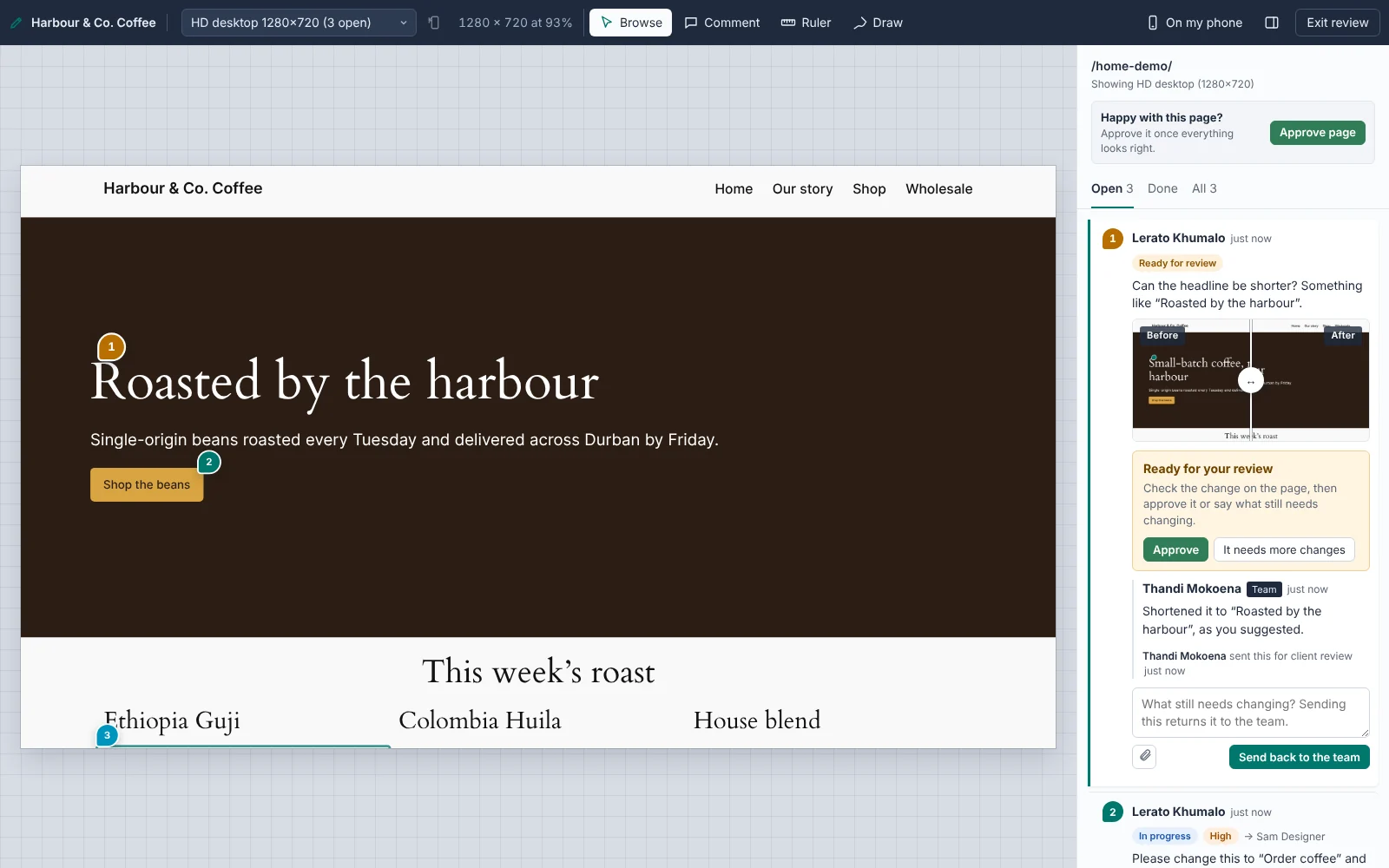
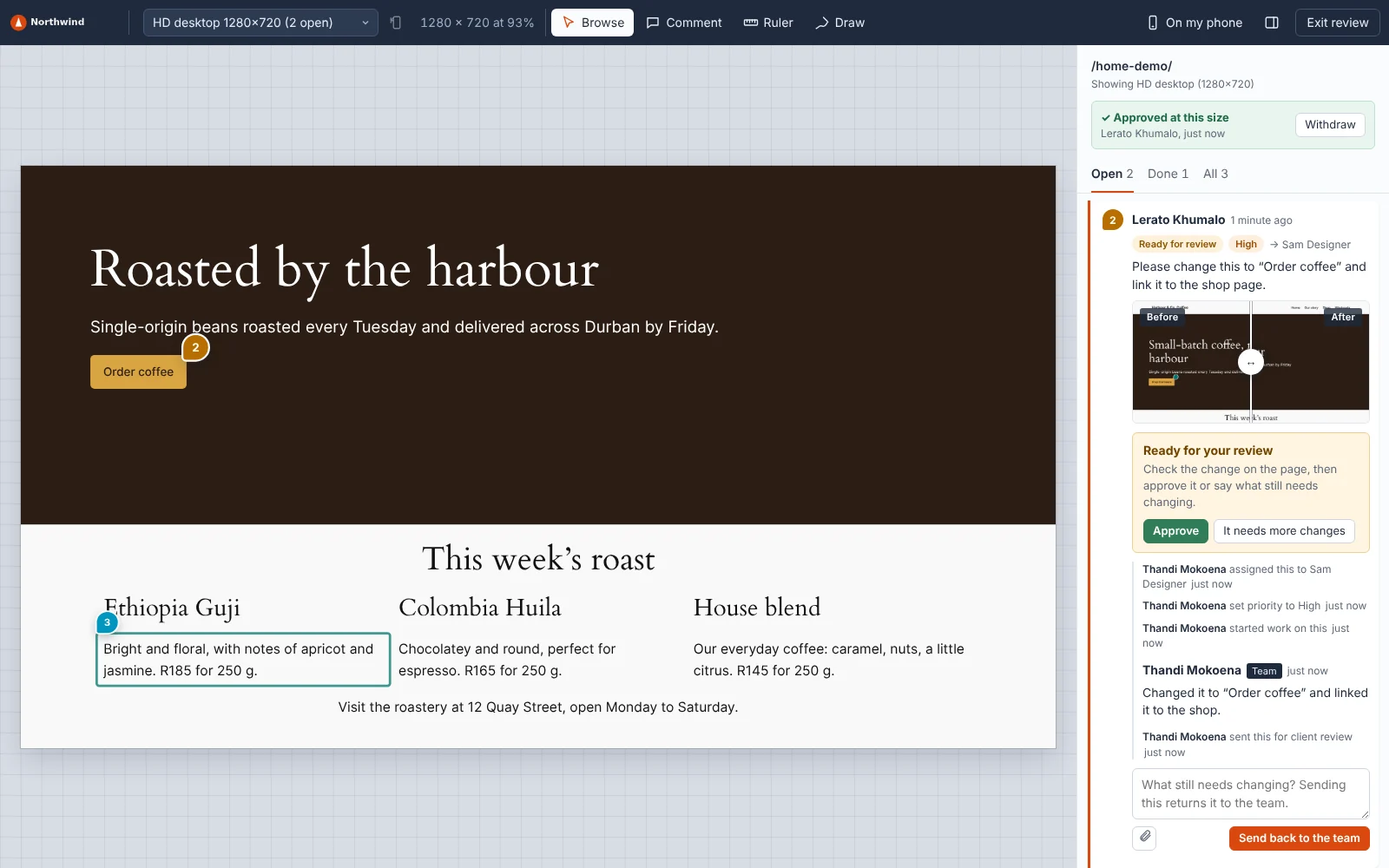
Review mode shows any page of the site inside a frame sized like a real device, with a toolbar across the top and the feedback in a panel on the right. Clients browse the site normally; links they click keep them in review mode.
- 14 built-in sizes, from a 1920 × 1080 desktop to a 360 × 800 Android phone, including current iPhones, iPads and common laptops. Phones and tablets can be rotated.
- Feedback belongs to a size. A comment left on the phone view only appears on the phone view, because layouts change between sizes. The panel lists feedback at other sizes and on other pages, and the size menu shows how many items are open at each size.
- Open it on a real phone. The "On my phone" button shows a QR code for the page you're on. Scan it and the same page opens in review mode on the phone, at the closest phone size. Clients using their personal link are signed in there too.
Drawing and measuring
Some feedback is easier to show than to describe.
- Draw with a pen, an arrow or a box to show where something should go, then add a note. Drawings are saved at the screen size they were drawn on.
- Measure with the ruler: hover over anything to see its size and its distance from the edges of the page, drag to measure between two points, and add vertical and horizontal guides to check alignment.
Automatic screenshots
Every comment and drawing saves a screenshot of what the reviewer saw, with the pin or drawing painted on. It shows the right carousel slide, an open menu, and fixed headers where they were on screen.
When your team sends a change back for review, an "after" screenshot is taken at the same size and framing, so clients see a true before and after. They compare the two with a slider.
Screenshots are stored on your own server under unguessable file names. Images loaded from other domains that don't allow it may be missing from a screenshot; everything else is captured.
Files and images
Clients can attach files to any comment or reply, such as a new logo, the right photo or a document of copy changes. They click the paperclip, drag a file onto the comment box, or paste an image straight in.
- Up to 10 files per comment, each up to 10 MB (or your server's upload limit if lower).
- Images, PDFs, Word, Excel and PowerPoint files, text and CSV files, zip files, and MP4 and MOV video.
- Every file is checked by its actual contents, not just its name. Files that could run code, such as SVG images and scripts, are refused.
Bug details
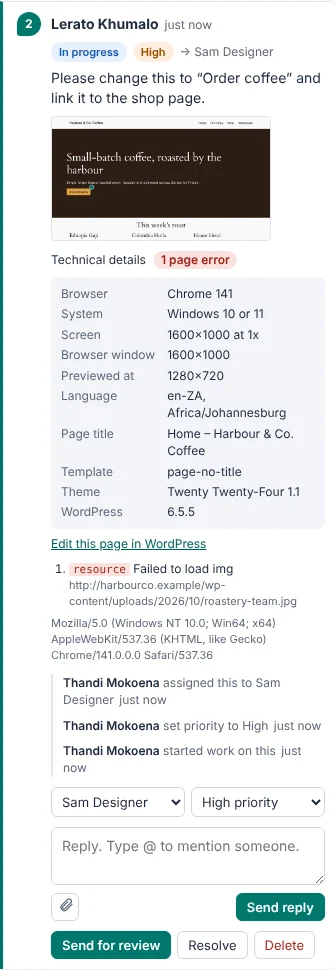
Every new comment quietly records the details a developer needs to reproduce a problem. Your team sees them under "Technical details"; clients never do.
- The reviewer's browser and version, operating system, screen and window size, pixel density, touch support, language and time zone.
- The page title, WordPress template, theme and WordPress version, with a link to edit the page.
- Errors on the page, including ones that happened while it was loading: JavaScript errors, failed requests, and images or scripts that didn't load.
Workflow and the board
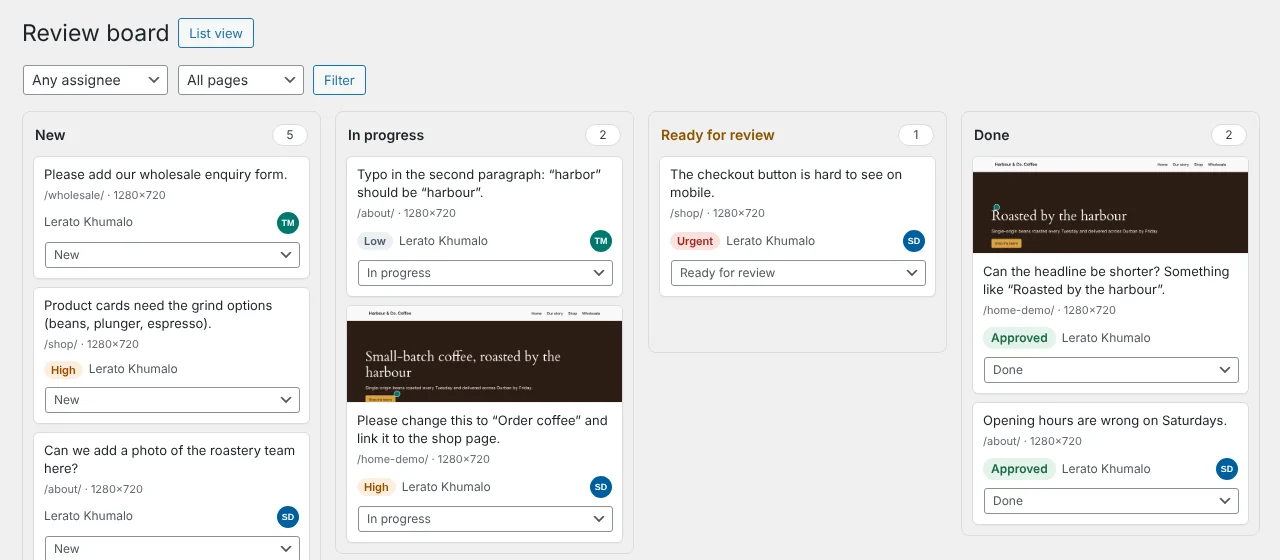
Every piece of feedback moves through five statuses: New, In progress, Ready for review, Approved, and Resolved (closed by your team without needing sign-off). Every change is recorded in its history: who moved it, assigned it or reprioritised it, and when.
- Assign feedback to team members and set a priority: low, normal, high or urgent. The assignee gets an email.
- The board shows everything as cards in four columns. Drag a card to move it, or use its menu from the keyboard.
- The comments list shows every item across the site with its screenshot or before-and-after, filters by page, screen size, person, assignee or "mentions me", and a search of comments and replies. Reply from there, with files.
Client sign-off
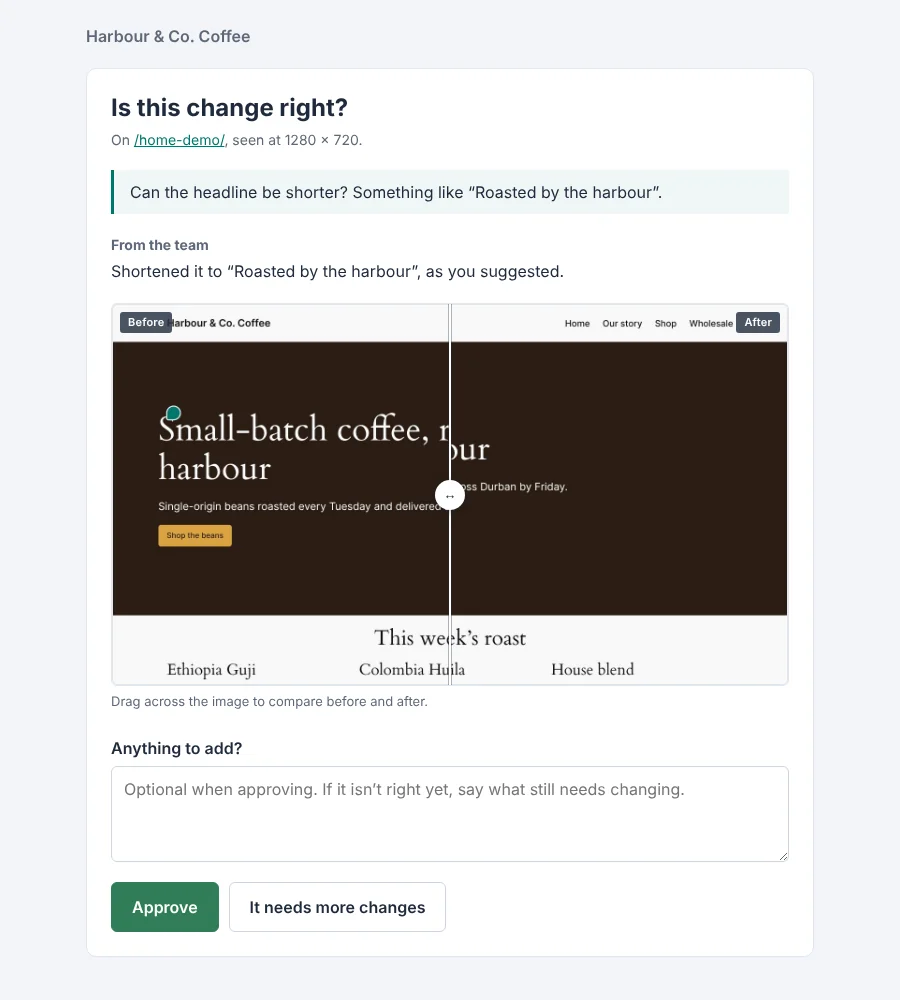
When a change is done, click "Send for review" and add a note. That’s Done takes the after screenshot and emails the client a before and after with a "Review and approve" button.
- No login needed. The button opens a sign-off page where the client compares the screenshots and chooses "Approve" or "It needs more changes".
- Changes go straight back. If it's not right, the item returns to New with the client's note as a reply, and your team is emailed.
- Links work once. Each sign-off link stops working when the client decides, or when you send the item for review again.
- Clients can also approve from the feedback panel in review mode. They can only approve their own feedback; your team can approve on their behalf.
Page approvals and the PDF report
When a whole page is right, the client clicks "Approve page" in review mode. They choose every screen size or just the one they're looking at, and can add a note. If comments are still open they're told how many, and can approve anyway.
If new feedback is added after a page was approved, the approval is shown as outdated until someone approves it again. The person who approved, or your team, can withdraw an approval.
The Approvals screen lists every page's status. Download a PDF sign-off report for the whole site or one page. It includes a summary, each page's full approval history (including withdrawn approvals), and every piece of feedback with its status, resolution, before and after screenshots, replies and attachments. It's branded with your logo and colours.

Client access
Clients never need a WordPress account.
- Personal links. Add a client with their name and email and they get their own link. Opening it identifies them, so their comments carry their name, you can @-mention them, and sign-off emails reach them.
- You stay in control. Links can expire after 30 or 90 days or on a date you choose. Turn a person's access off, or replace their link, without affecting anyone else. See when each client last opened review mode.
- A shared guest link is available for quick group reviews. People type their name when they comment.
- Your team opens review mode from the WordPress admin bar. Administrators and editors have access; only administrators can change settings.
Emails and @-mentions
The right people hear about the right things, by email:
- Your team inbox, when a client comments, replies, approves, asks for changes or approves a page.
- A team member, when they're assigned something or @-mentioned.
- A client, when their feedback is ready for review or someone @-mentions them. Their email carries their personal link, so they land signed in.
Type @ in any comment or reply to mention someone. Clients can only mention your team, never other clients.
Slack and webhooks
Slack: paste in a Slack incoming webhook and choose what to post: new feedback, client replies, approvals and change requests, items sent for review, assignments and page approvals. Posts include the screenshot and buttons to open the item.
Webhooks: send events as JSON to any https address, such as Zapier, Make, n8n or your own code. There are ten events, covering new feedback, replies, status changes, reviews, assignments, deletions and page approvals. Every request is signed with a secret, so you can check it came from your site. Each webhook shows its last delivery, and you can send a test.
Notifications are sent after the page has finished loading, so nobody waits on Slack or other services.
White-labelling
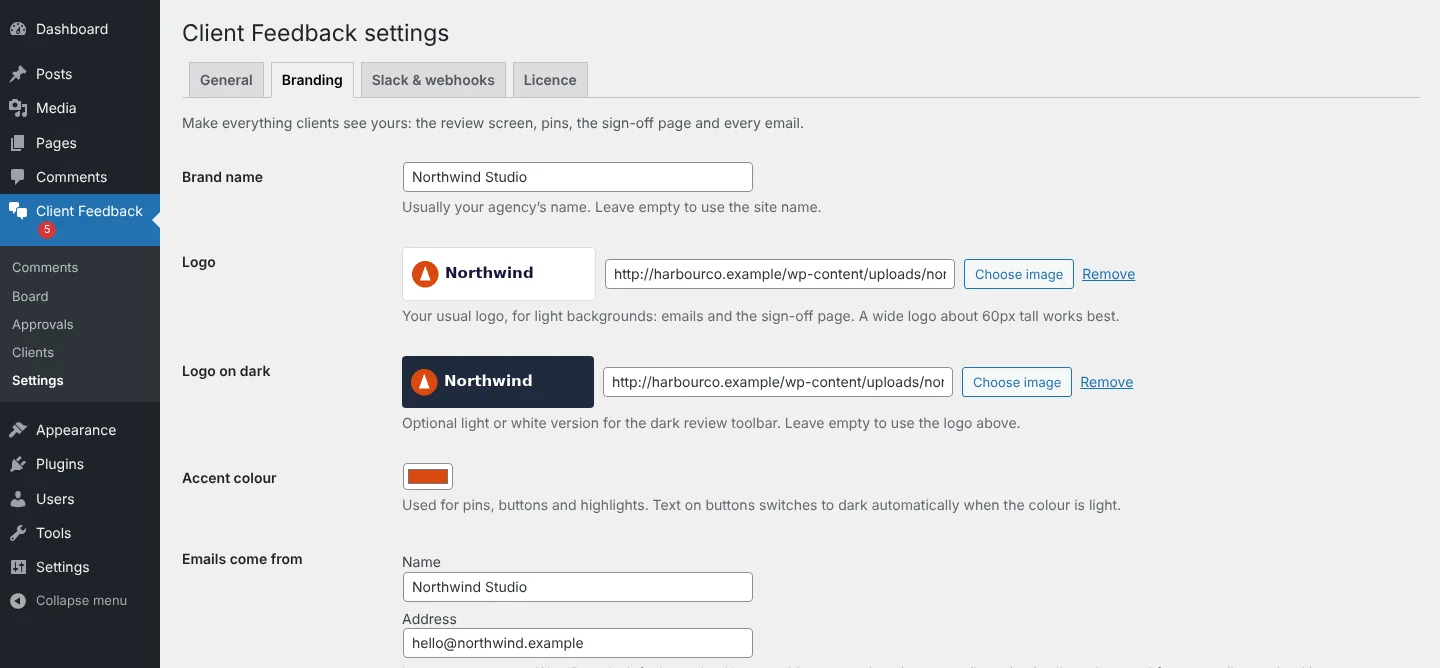
Make everything your clients see yours: the review screen, pins, drawings, screenshots, the sign-off page, every email and the PDF report.
- Your brand name, a logo for light backgrounds and an optional light version for the dark review toolbar.
- Your accent colour. Text on buttons switches to dark automatically when the colour is light.
- The name and address emails come from, and your brand name in every subject line.
- The plugin's name in the WordPress menu, such as "Client Feedback".
Set it up once under Settings → Branding; it applies to every client, page and email on that site. White-labelling is included on every plan.
Privacy, security and speed
- Your data stays on your server. Feedback, screenshots and files live in your WordPress database and uploads folder. Nothing is sent to us.
- Built to WordPress standards. The code passes the WordPress coding and security standards, with access checks on every action and protection against the common web attacks.
- Nothing for ordinary visitors. The review tools only load when someone opens review mode, so your site's speed is unaffected.
- Light on the reviewer's browser. The review screen checks for new feedback efficiently and only tracks pins closely while something on the page is moving.
Requirements
- WordPress 6.0 or later and PHP 7.4 or later.
- Works with block themes, classic themes and page builders, including Elementor.
- Reviewers need a current version of Chrome, Edge, Firefox or Safari, on desktop or mobile.
- An SMTP plugin is recommended so emails don't land in spam.
Comments that stay put
Clients choose the Comment tool and click the exact thing they mean: a heading, a button, a photo. A numbered pin marks the spot.